

The closest we have to a universal file format is the PDF.
The closest we have to a universally hated file format is also the PDF.
What it gives in consistent formatting across devices. It takes away with an inconsistent ability to work with the content. And don’t get me started on editing.
So when we were approached by an investor to help them get data out of PDF board meeting decks I didn’t know if we should help or run.
In this article I’ll run through the challenge they were facing, how we fixed it, and share the prompt and N8N workflow so you can make your own PDF extraction automations.
The problem
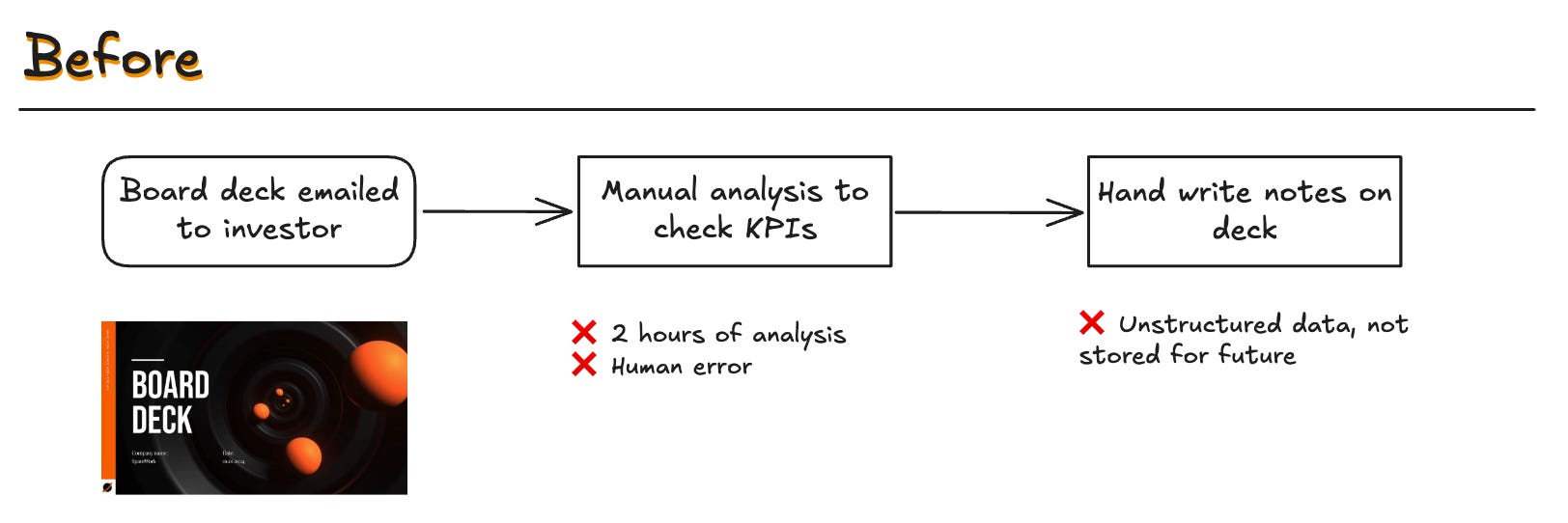
Our client was spending hours before board meetings checking KPIs given in the board pack. That meant:
Find the KPI (say ARR)
Looking for what it was reported as the previous month and comparing
They would do this for tens of KPIs which could take hours and would inevitably involve human error as we are unreliable meat computers.
And even then the analysis was written on a PDF. Not even the best RAG search engine would be able to return those results.
The solution
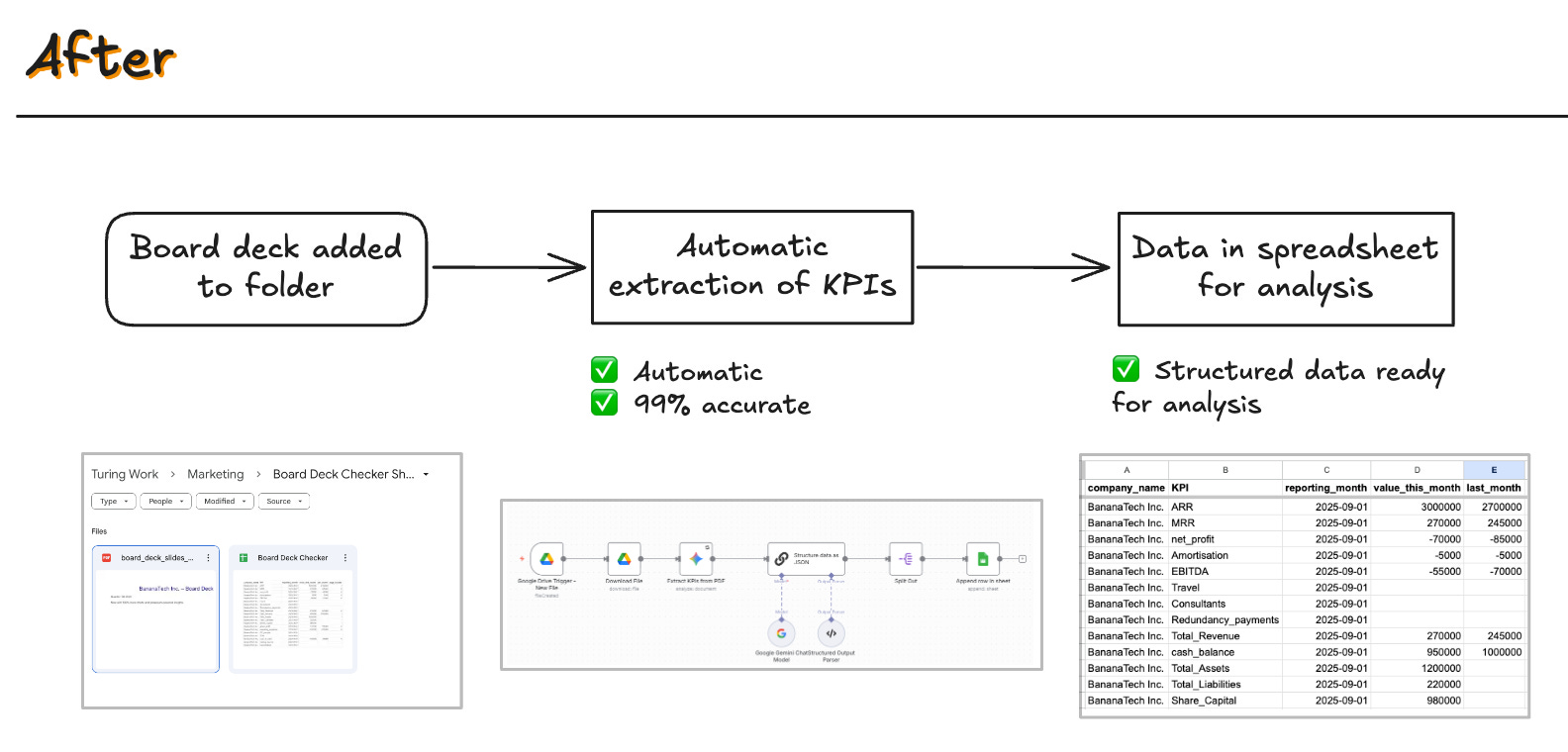
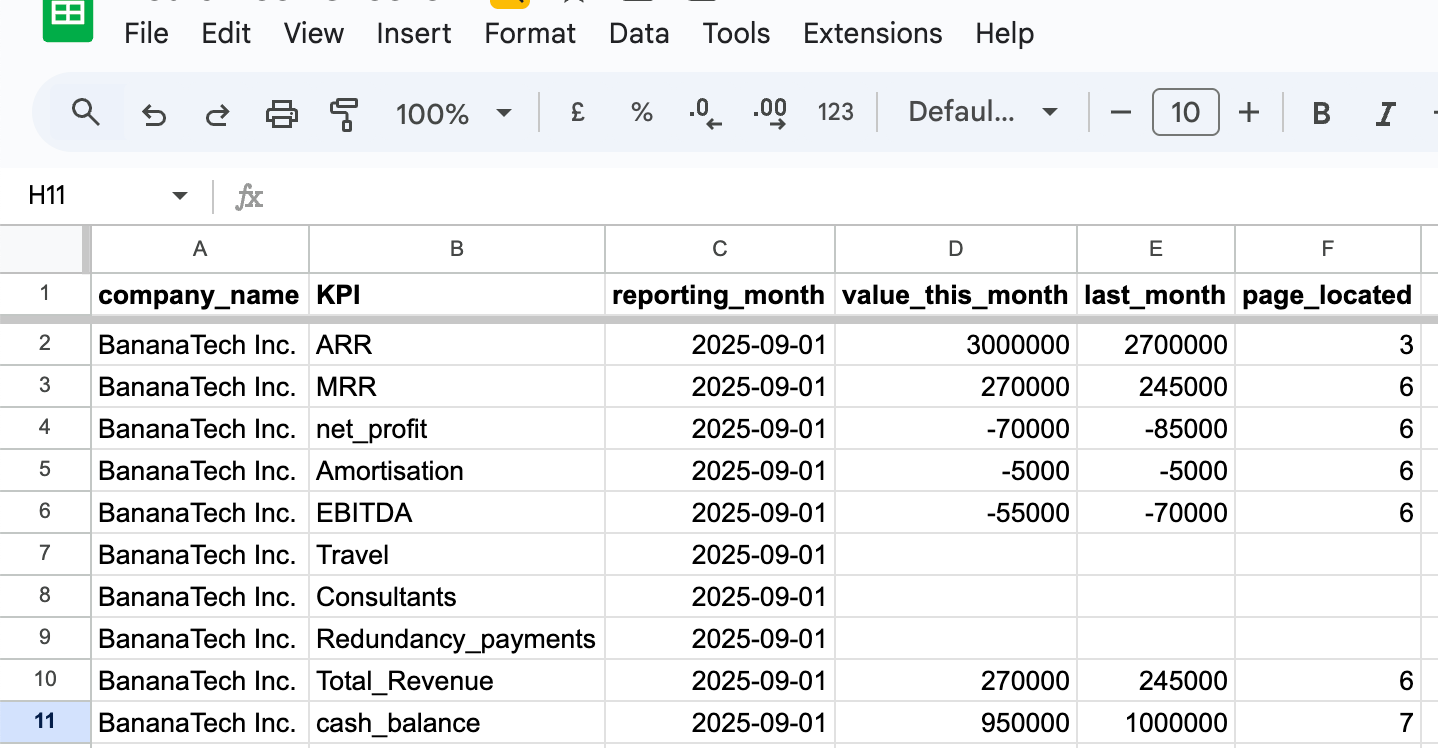
Our workflow took the PDF from Google Drive, extracted the KPIs using AI, and then put the data in a spreadsheet for analysis.
This was quicker, more accurate, and put the data in a format more amenable to analysis.
The workflow
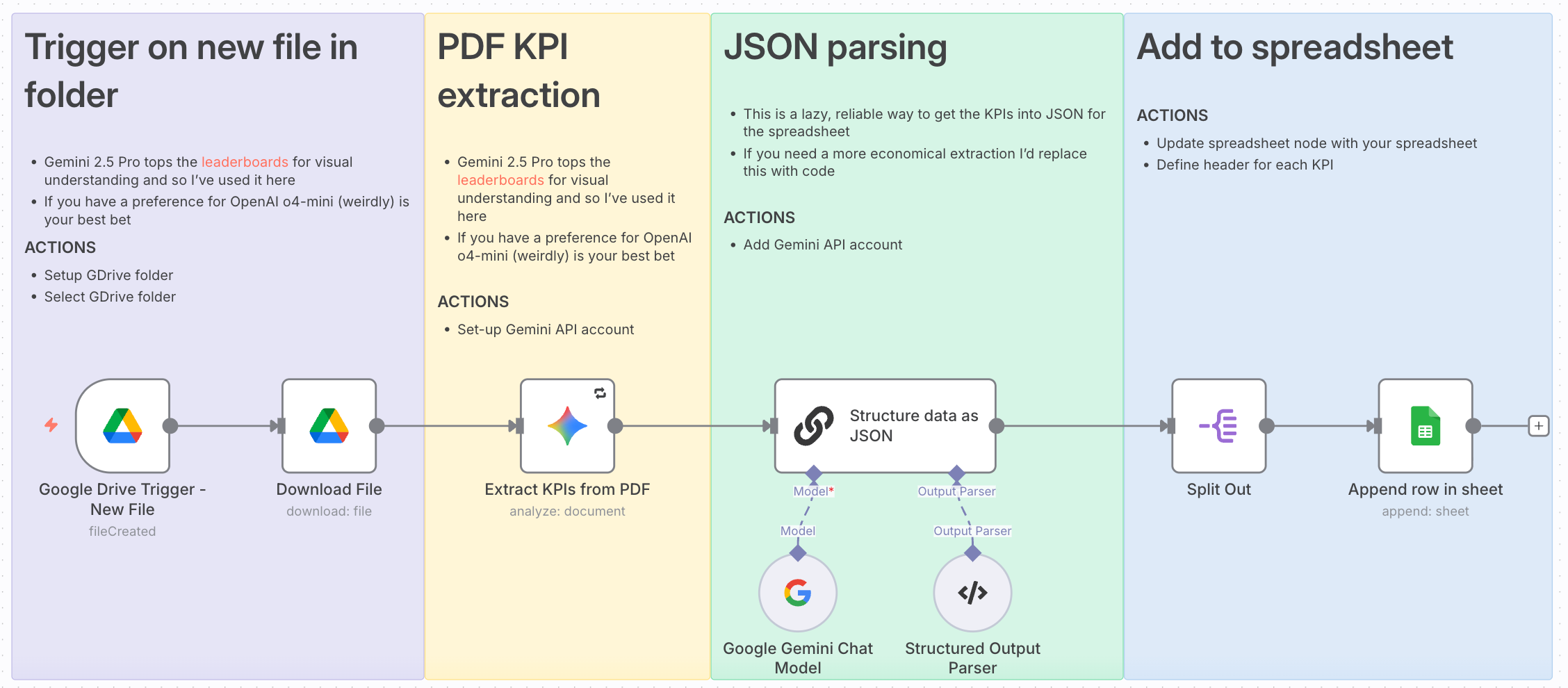
Trigger: New file in Google Drive folder
PDF AI Extraction: Gemini 2.5 Pro for most accurate result (explained below)
JSON parsing: Getting data structured for next steps
Add to spreadsheet: Template shared below
You can download the JSON template here
Prompt & Model
It’s set-up with 20 common KPIs from board decks. However it’s easy to change them to whatever you need.
I’d suggest asking AI to make edits to which KPIs are required so you don’t have to fiddle with the JSON. You will also need to change the validation example in the JSON parser, just paste it into a LLM and ask AI to change the KPIs there too.
You can download the prompt here
How to get to 99% accuracy
It’s all about the model chosen and tuning it for your file:
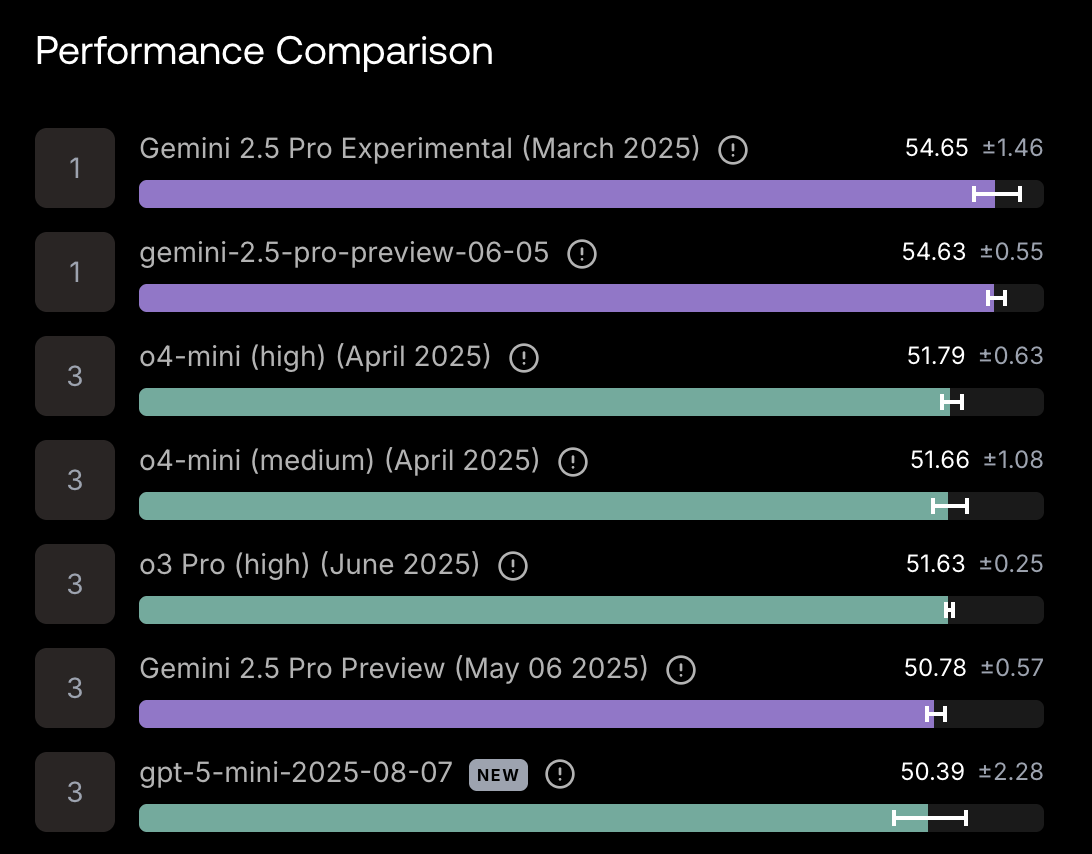
Gemini 2.5 pro is the most accurate AI for reading PDFs
Benchmarks from the Scale leaderboards back up what I discovered through painful trial and error, Gemini 2.5 is the best for visual understanding.
It’s not the cheapest or quickest, but it sure does read PDFs well.
Read its thoughts to tune the prompt
2.5 Pro is a reasoning model, so if it gives you the wrong answer, you can read its reasoning to find out why. Interestingly it usually had a good reason for giving the wrong answer, like data duplication or inaccurate charts (yes it looks at those too).
Tuning the prompt for each document allows you to tackle these document specific issues and get to 99% accuracy.
Spreadsheet Template
Here’s the template of the spreadsheet required to run this workflow. Create a copy of the file and link to it in the sheets node.
About Me
I’m Alasdair Bell, founder of Turing Works. We help companies automate boring workflows, like digging KPIs out of PDFs so you don’t have to.


